Everything you need to master your brand's ecosystem. Select your role below to view tailored workflows, interactive guides, and FAQs.
Powered by Google NotebookLM
Listen to our AI-generated podcast overview of how to navigate SocialHQ, approve content, and communicate with your account manager. Perfect for your commute.
Click below to open our interactive, step-by-step visual map to mastering your SocialHQ dashboard.
Simply click the SocialHQ link in our website navigation and select "Sign in with Google." Ensure you are using the exact Gmail address you provided to your account manager. Our system will automatically authenticate you and load your specific brand's secure workspace.
If you have just logged in for the very first time, your account manager is likely still setting up your brand's baseline strategy. If it is the middle of the month, we may be in the drafting phase for the upcoming week. Your manager will always notify you via email or Slack when a new batch of posts is ready for your review.
Next to every post on your calendar or grid, you will see a small Chat Bubble icon. Click it to open the feedback panel for that specific post. Type your revisions or thoughts, click "Add Note," and our entire creative team is instantly notified to make the changes.
Internal Team Onboarding
Listen to this quick overview on how we use DailyHQ to track tasks, communicate internally without emails, and push content to SocialHQ for client approval.
Click below to launch the interactive DailyHQ workflow and bridge protocol guide.
Use the Priority dropdown on your task card and select "High/Urgent." Additionally, you can tag the specific team member in the task comments to trigger a notification.
Do not upload files over 50MB directly to DailyHQ. Instead, upload the asset to the client's designated Google Drive folder and paste the shareable link into the DailyHQ task comments.
Once an internal task (like graphic design) is marked "Complete" in DailyHQ, use the purple Bridge Button. This automatically generates a draft post in the client's SocialHQ calendar so they can review it.
If you experience a bug in DailyHQ, notify the Admin immediately.
© 2026 The Digit. All Rights Reserved.
Software & Fair Usage Terms
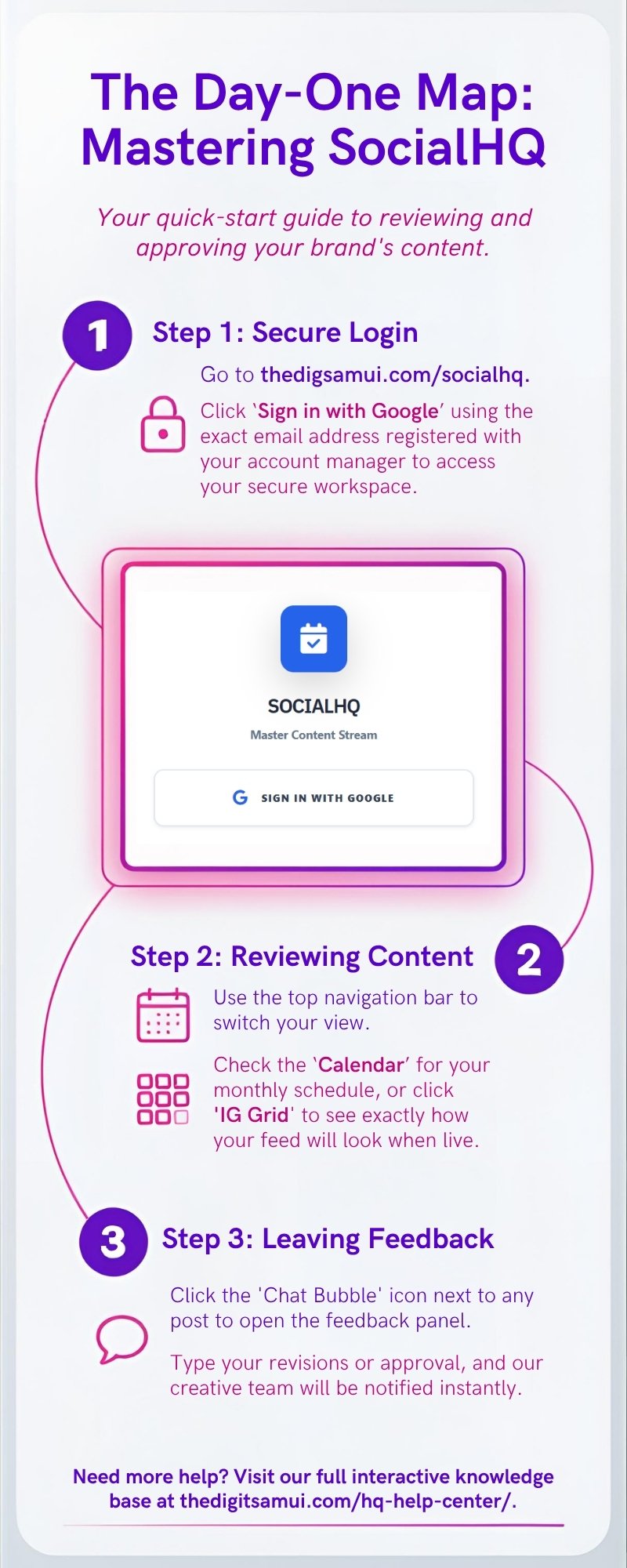
Go to thedigitsamui.com/socialhq. Click "Sign in with Google" using the exact email address registered with your account manager.
Use the top navigation bar to switch your view between Table, Board, IG Grid, and FB Feed.
Check your content queue. You can review full details including text, images, tags, and scheduled publishing times.
Click the 'Chat Bubble' icon next to any post to open the feedback panel. Type your revisions or approval instantly.
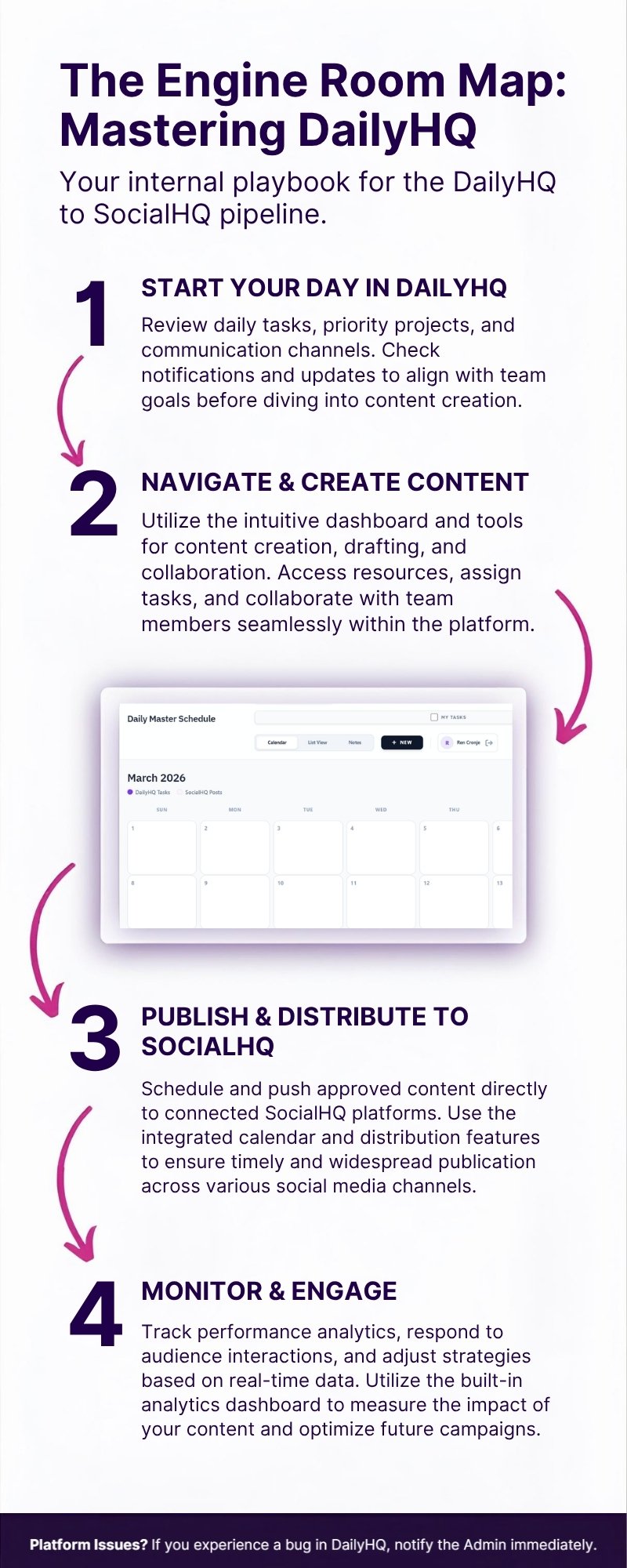
Log into DailyHQ to view your assigned tasks, check deadlines, and review priority tags assigned to you.
Change your task status to 'In Progress'. Upload your deliverables, files, and ensure appropriate internal tagging is applied.
Use the comment section inside DailyHQ for all internal feedback, keeping communication centralized and out of email.
Once a task is marked complete internally, use the Bridge feature to push the final asset to SocialHQ for client approval.